Attachment Policy Manager for Confluence: user guide
For Confluence administrators and space administrators who set the app up and look after it. If a file of yours was removed, see If your file was removed.
ConfluenceVersion 2.0.1Updated October 4, 2026
What the app does
You decide which files can be attached to pages and blog posts. When someone attaches a file that breaks your rules, the app can remove the file, post a comment on the page that tells the uploader what happened and why, and record it in an audit log. You can also limit how much a space stores, in total size and in number of files.
One thing to know up front: Confluence doesn’t let apps block an upload before it happens. The app checks each file right after it’s attached, usually within seconds, and removes it then.
Where to find it
What
Where
Who can open it
A space’s policy, audit log and history
Space settings → Integrations → Attachment Policy Manager
Space administrators and Confluence administrators
The global policy, every space at once, the global audit log
The global policy is set by Confluence administrators and applies to every space that doesn’t have its own.
A space policy is set by a space administrator and applies to one space only. It replaces the global policy in that space. The two are never mixed.
Confluence administrators can turn off Allow space administrators to create a space policy. Then every space uses the global policy, whatever its space administrators have set.
When the app is first installed, the global policy is Off, so nothing is checked until someone sets it up.
Set up a policy in five steps
Open the policyFor the global policy, open the Global policy tab. For one space, choose Use a space policy under Policy for this space. The form starts with the global policy’s rules, so you only change what you need.
Choose Monitor modeFiles that break the rules are recorded in the audit log but not removed. You see what your rules would catch before they remove anything.
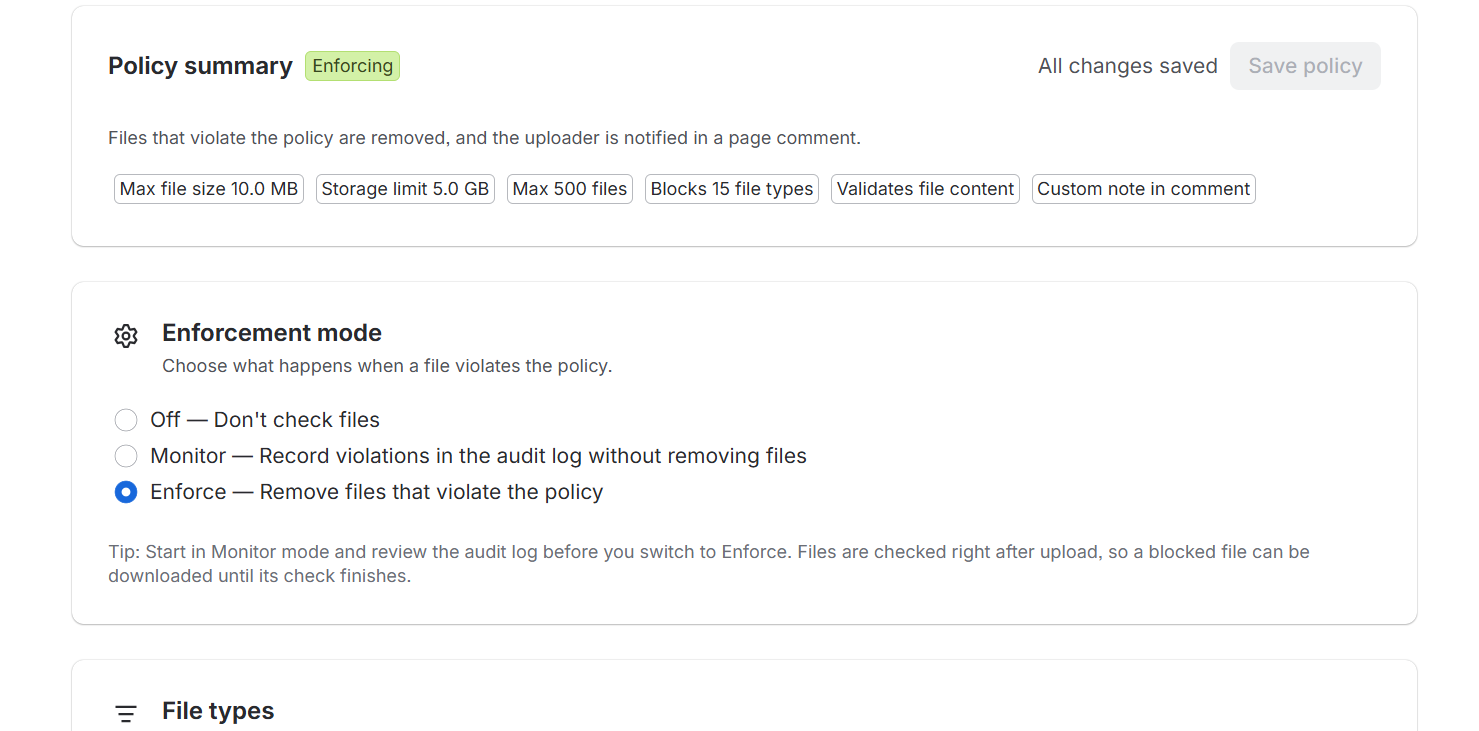
The summary at the top shows what is saved. Monitor records files without removing them.
Add your rulesOr start from a preset (see below).
Try a few file namesUse Test a file at the bottom of the page, then click Save policy.
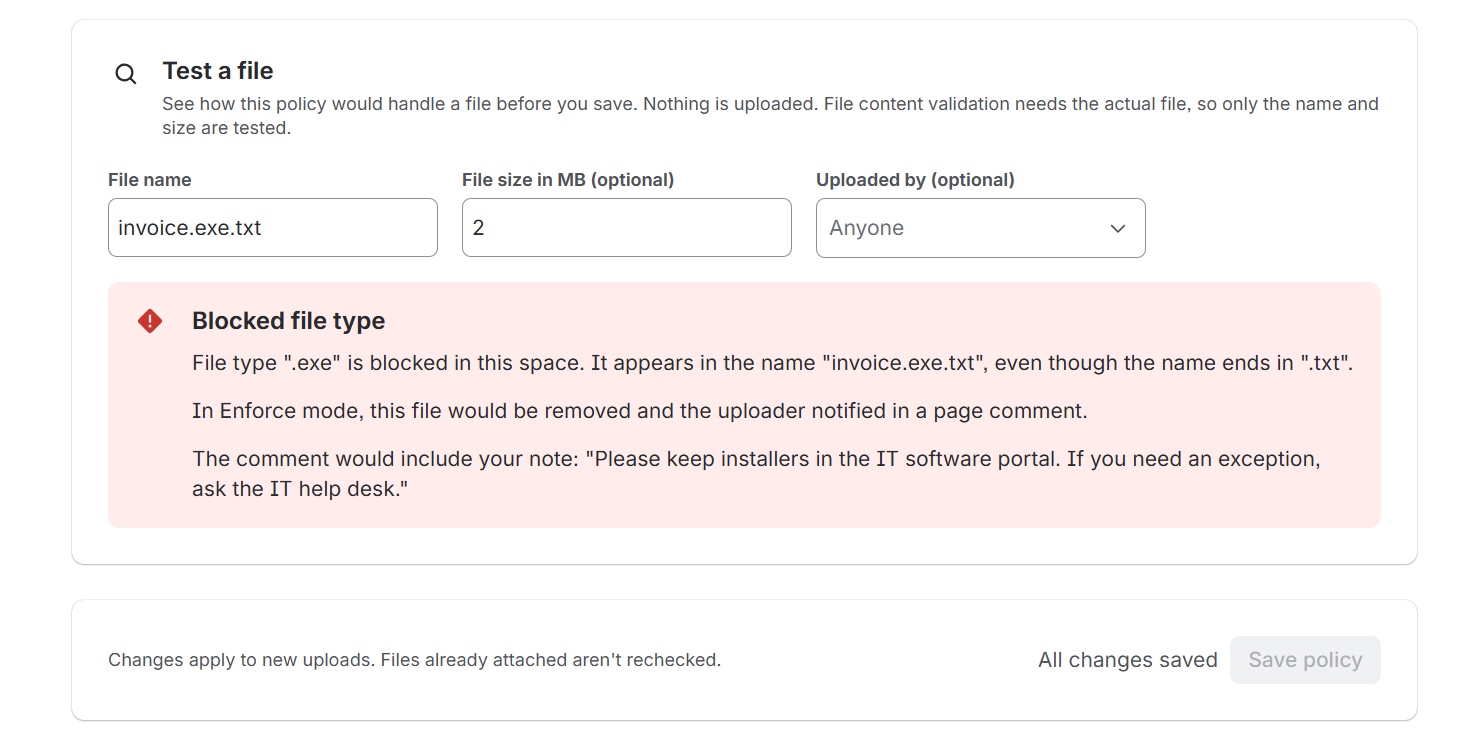
Test a file uses the rules on screen, before you save. Nothing is uploaded.
After a week or so, read the audit logEvery entry is a file the policy would have removed. If something is there that shouldn’t be, fix the rules or add an exemption. When the list looks right, change the mode to Enforce.
Mode
Mode
What happens when a file breaks the rules
Off
Nothing. Files aren’t checked. Your rules are kept but not used.
Monitor
The file stays. The audit log records it.
Enforce
The file is removed, the uploader gets a comment on the page, and the audit log records it.
Presets
A preset fills in rules for you. It only changes the rules it describes and never changes the mode.
Block executables: blocks file types that can run programs, such as exe, bat and msi.
Images only: allows common image types and nothing else.
Documents only: allows office documents and text files and nothing else.
Limit files to 10 MB: blocks files larger than 10 MB.
File types
Blocked file types: files of these types are never allowed. Every part of the name is checked, so blocking exe also catches invoice.exe.txt.
Allowed file types: if you fill this in, only these types are allowed and everything else is rejected. Leave it empty to allow everything that isn’t blocked.
Type the extensions without dots, separated by commas: exe, bat, sh.
Limits
Enter 0 for no limit.
Maximum file size (MB): the largest single file allowed.
Space storage limit (GB): the total size of all files in the space.
Maximum number of files: how many files the space can hold.
The two space limits need the space to be counted first. The app starts counting on its own when you save a limit. You can see the count, and start a new one, on the Space storage card.
File content validation
When this is on, the app checks that each file really is what its name says. For example, it catches a program renamed to invoice.pdf, or a ZIP file renamed to notes.txt. It reads only the first 64 KB of each file, and it never keeps or sends the content anywhere.
This is not a virus scanner. A real PDF with something harmful inside is still a real PDF.
If a check can’t be completed
Sometimes a check can’t run. For example, Confluence might not report a file’s size, or the space might not be counted yet. You choose what happens then:
Allow the upload (the default): the file stays, and the audit log records it as Allowed, checks incomplete.
Reject the upload: the file is treated as breaking the policy.
Message to uploaders
An optional note, up to 500 characters, added to the comment the app posts when it removes a file. Use it to say where files like this belong, or who to ask for an exception. The form shows a preview of the full comment as you type.
Exemptions
Files uploaded by exempt people or groups are never checked. Use this for trusted accounts, such as an integration that uploads build files. App accounts can’t be picked here.
Test a file
Test a file shows what the policy would do with a file name you type, and optionally a size and an uploader. It works on the rules you’re editing, before you save, and nothing is uploaded. It can’t test file content validation, because that needs a real file.
Audit log and history
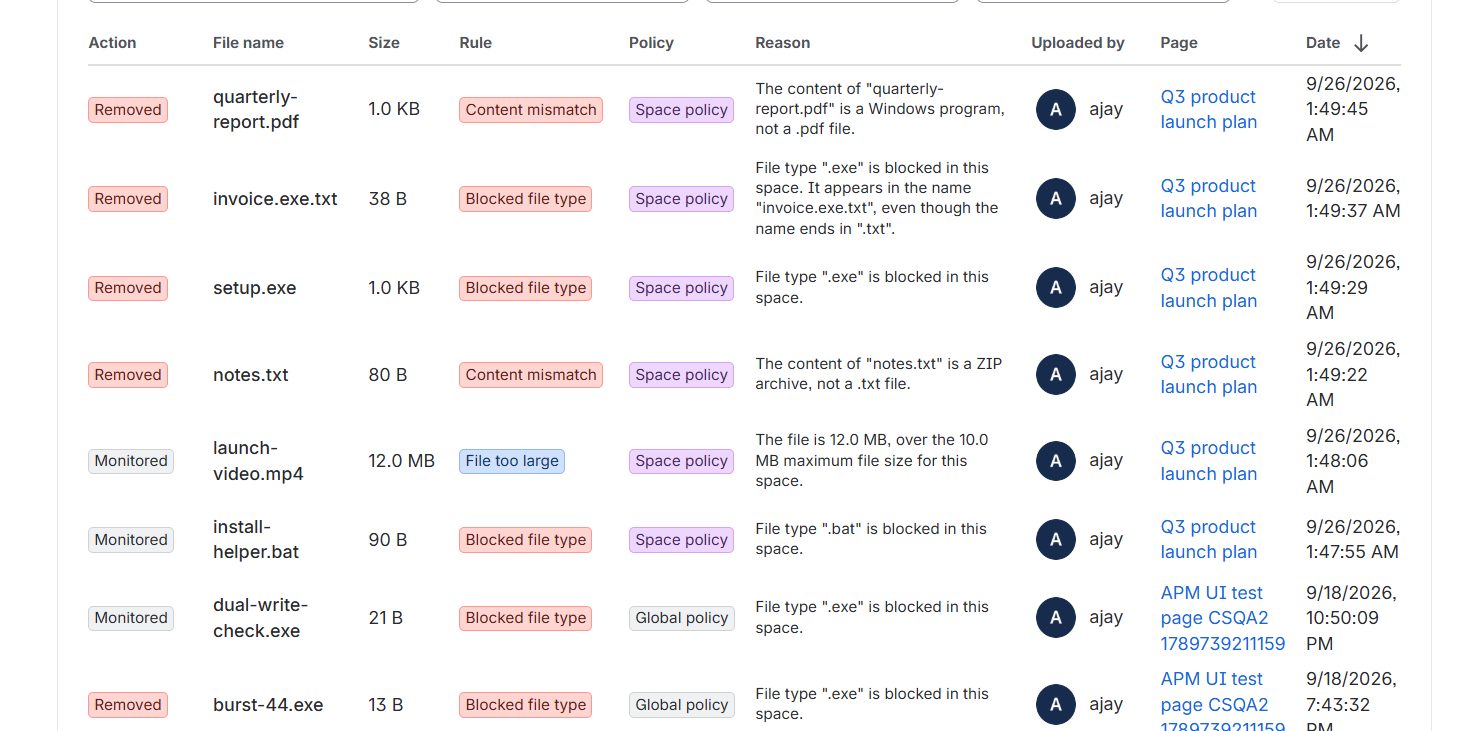
The Audit log tab lists files that broke a policy and what happened to each: Removed, Monitored, Removal failed, and so on. You can filter by action, rule and policy, search by file name, page or reason, and export the list as CSV. A space keeps its newest 200 entries, and the global audit log keeps 500. Export the CSV if you need to keep more.
Each row shows the action, the rule, the reason, who uploaded the file and the page.
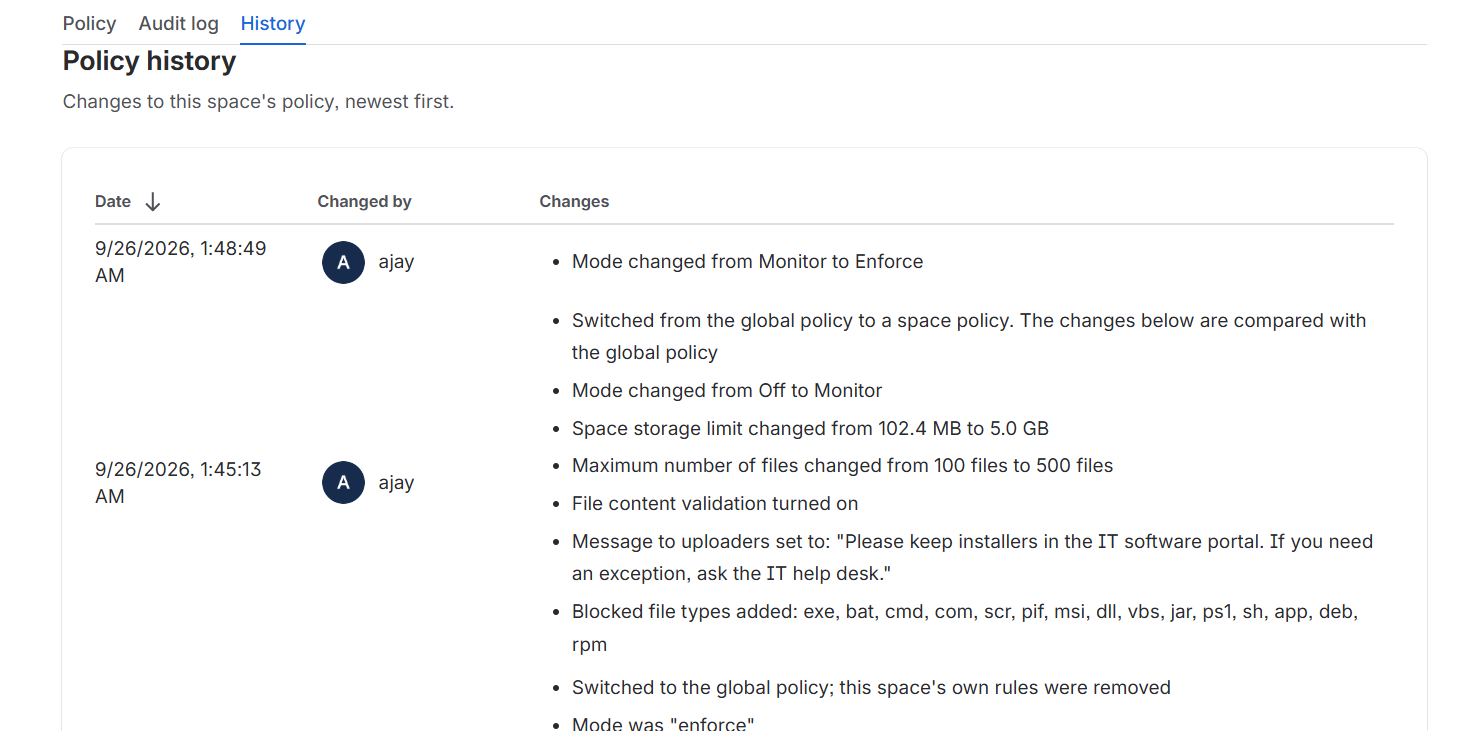
The History tab shows every change to a policy: who made it, when, and what changed. It keeps the newest 100 changes per policy.
Policy history, newest first, with who made each change and what changed
If someone’s Atlassian account is closed, the app removes their account ID within about a week, and their entries show Former user instead.
Seeing every space at once
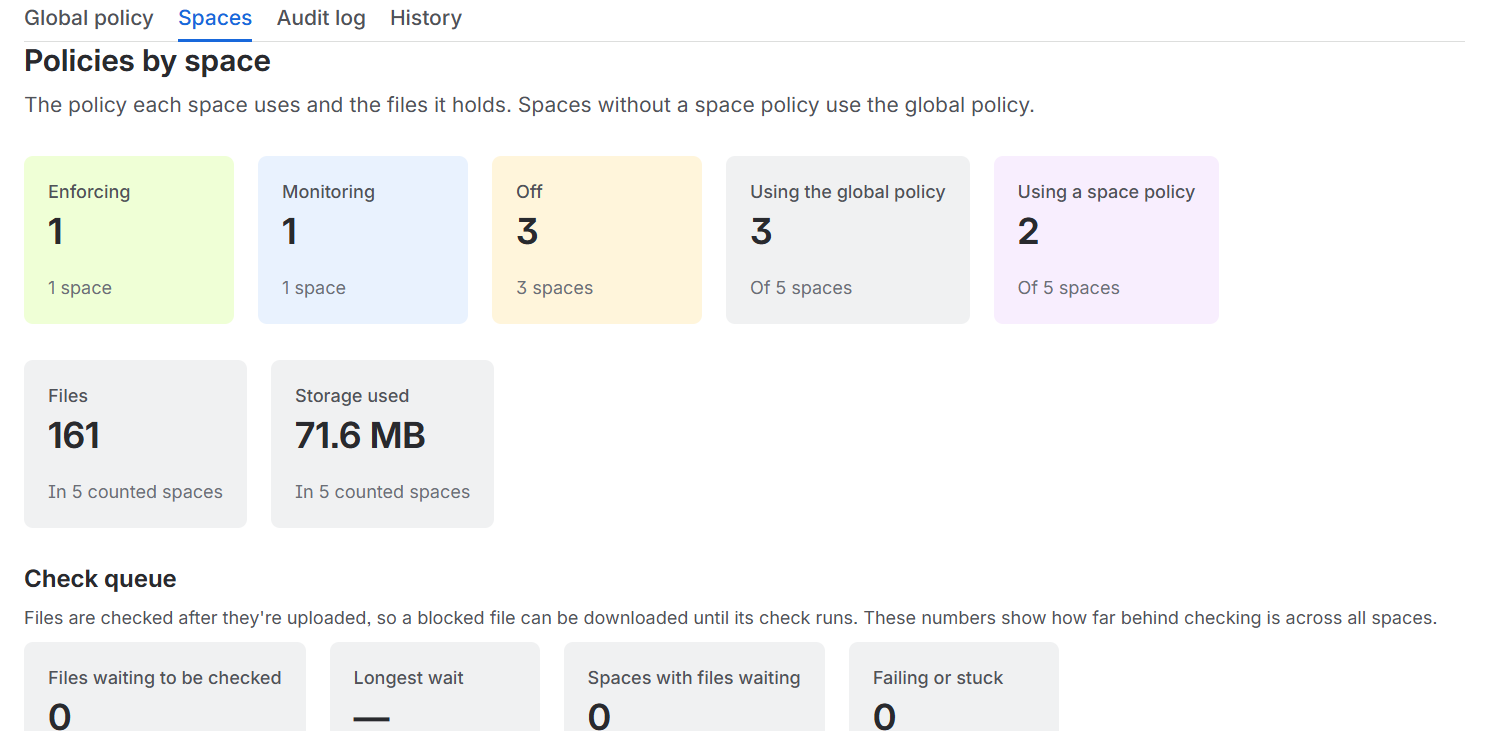
Confluence administrators can open the Spaces tab to see which policy every space uses, its mode and rules, and how many files it holds. It also warns you about spaces worth a look, such as a space whose own policy is turned off, or a space over its storage limit. Export CSV gives you the same list in a spreadsheet.
The top of the Spaces tab. The table below it lists every space with its rules, storage and files.
If your file was removed
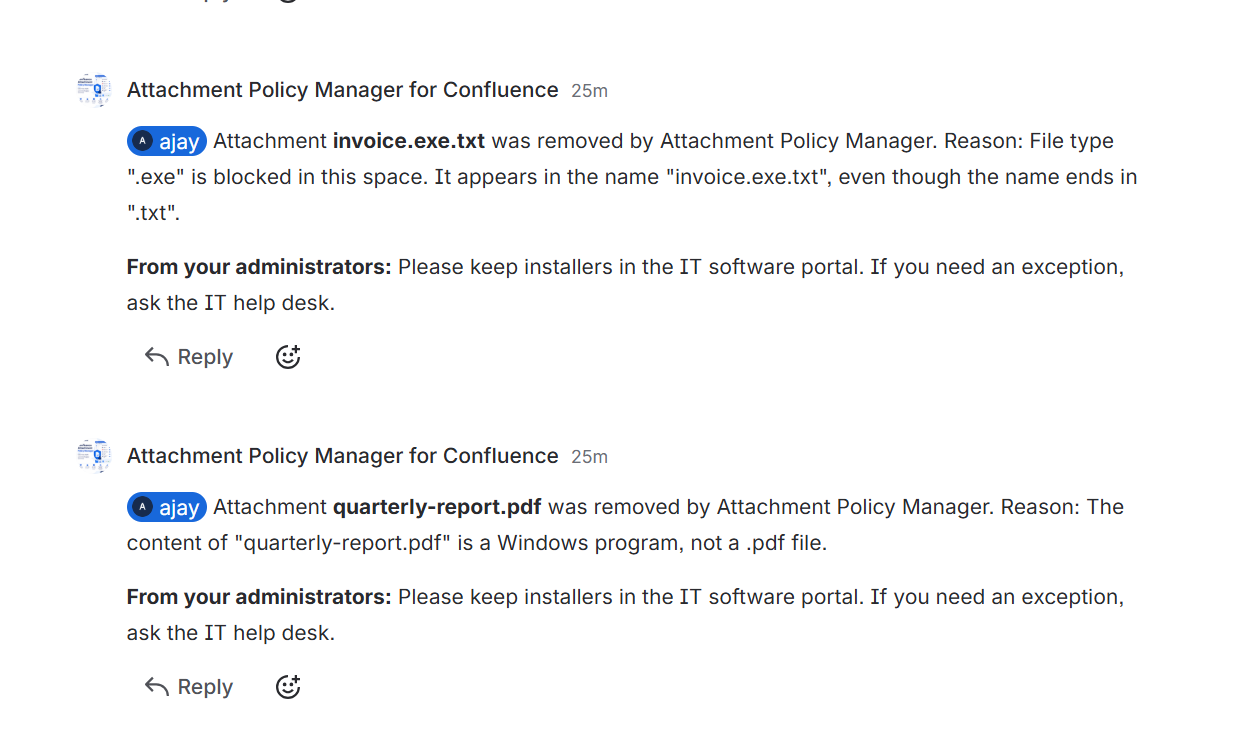
If the app removed your file, you’ll see a comment on the page that mentions you. It says which file was removed and why, for example File type ".exe" is blocked in this space. It may also include a note from your administrators.
What an uploader sees on the page.
The file is in the space’s trash, not deleted for good. If you think it was removed by mistake, ask a space administrator. They can see the entry in the audit log, and they can change the rules or exempt you.
Questions people often ask
Why can I still download a blocked file for a few seconds?
Confluence stores the file before any app can see it. The app removes it right after, usually within seconds, and a little longer when many files arrive at once.
Are files that were already attached checked?
No. Rules apply to new uploads and new versions. Files already on the page are left alone.
Does the app work in every space right away?
Only if the global policy is turned on. Until then, it checks only spaces that have their own policy in Monitor or Enforce mode.
What happens if our subscription ends?
The app stops checking new files, and policies can’t be changed. Your policies, audit log and history stay available and can be exported. Nothing is deleted.
Does the app send our data anywhere?
No. Everything stays in your Confluence site’s app storage on Atlassian’s cloud. The app has no servers of its own and uses no analytics.
Getting help
Open a request in the AryonForge support portal, or email support@aryonforge.com. We reply within one business day, Monday to Friday. To report a security problem, choose “Report a security issue” in the portal, or email the same address with “Security” in the subject line. More on how we help: Support.
 AryonForge